
Tabs
The tab list presents your open tabs as shown above. Without hovering, each entry shows the site’s favicon, title, and URL.
Switching between tabs
Click on any tab in the list to switch to it.
Selecting tabs
You can enter Edit Mode to select one or more tabs:
- Right-click to select: Right-click a tab and choose “Select tab” to enter Edit Mode with that tab selected.
- Shift-click: Hold Shift and click another tab to select all tabs between the two.
- You can also change the default behavior of double-clicking or middle-clicking a tab to perform a tab selection instead. By default, double-clicking creates a new tab below it and middle-clicking closes it.
To exit Edit Mode, click the Done button at the bottom of the side panel.
Closing tabs
- Hover over a tab and click the × button.
- Right-click a tab and select “Close Tab”. Select multiple tabs first to close them all at once.
- Middle-click a tab (this can be changed in settings).
To close tabs relative to a specific tab, right-click it, hover over the arrow next to “Close tab”, and choose “Close other tabs”, “Close tabs above”, or “Close tabs below”.
Sleeping and waking tabs
Sleeping a tab frees up system resources by stopping it from running background activity. Sleeping tabs appear faded in the tab list.
To sleep a tab:
- Hover over a tab and click the moon/sleep button.
- Right-click a tab and select “Sleep Tab”. You can select multiple tabs first to sleep them all at once.
- To sleep all tabs except the currently active one, click the sleep icon in the Action Bar.
To sleep tabs relative to a specific tab, right-click it and choose “Sleep other tabs”, “Sleep tabs above”, or “Sleep tabs below”.
To wake a tab:
- Click on a sleeping tab to wake it.
- Right-click a sleeping tab and select “Wake Tab”.
Pinning and unpinning tabs
Pinned tabs appear anchored to the top of the tab list. By default they are shown in a compact grid.
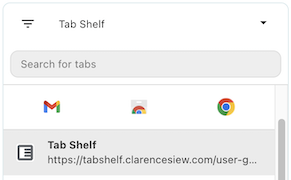
To pin or unpin a tab:
- Right-click a tab (you can select multiple tabs first to pin/unpin several at once).
- Select “Pin Tab” or “Unpin Tab”.
Configuring Pinned Tab Restore URLs
When a pinned tab is sleeping or the browser restarts, you can configure Tab Shelf to restore it to a specific URL — useful for tabs you always want to open to a fixed page (e.g. your email inbox or a dashboard).
To set a Restore URL:
- Right-click a pinned tab.
- Select “Set restore URL”.
- Enter the URL you want the tab to restore to.
- Enable “Auto-restore” to have this happen automatically when the tab wakes.
You can also enable Auto-restore all pinned tabs on sleep in Settings > Pinned Tabs to apply auto-restore globally, without configuring each tab individually.
Muting and unmuting tabs
Tabs playing audio show a volume indicator in place of the favicon. When muted, a crossed-out volume icon is shown instead.
To mute or unmute a tab:
- Right-click an audible tab (you can select multiple tabs first).
- Select “Mute Tab” or “Unmute Tab”.
Reloading tabs
Right-click a tab and select “Reload”.
Split Views
Split Views let you view two tabs side by side in the same browser window. Tab Shelf displays split view pairs with a link icon between them.
Note: Split view support is currently only available for Google Chrome 140 and above.
- Creating a Split View: Right-click a tab in the browser’s tab strip and select “Add tab to split screen”, or use the split view button in the browser toolbar.
- Recognizing Split Views: Paired tabs appear with a swap icon between them in Tab Shelf.
- Reordering within a Split View: Click the link icon between paired tabs to swap their order. You can also drag one split view tab onto its partner to swap without unpairing.
- Separating a Split View: Right-click the link icon and select “Separate tabs”. The tabs will be unpaired but remain open.
- Closing a Split View: Right-click the link icon and select “Close tabs” to close both. Dragging one paired tab to a different position will also unpair them (Tab Shelf will warn you before doing so).
Duplicate Tabs
Tab Shelf automatically detects tabs with the same URL.
- Identifying duplicates: Toggle the “Duplicate Tabs” filter (file copy icon) in the filter area to highlight duplicates. Each duplicate shows a label indicating whether it is in “This Window” or “Other Window”.
- Cleaning up: When the duplicate filter is active, a “Close all duplicate tabs” button appears in the Action Bar to remove them in one click.
Adding tabs to the Tab Tray
Right-click a tab and select “Add to Tab Tray” to save it in the Tab Tray for quick access later without closing it. Learn more about the Tab Tray.
Tab actions
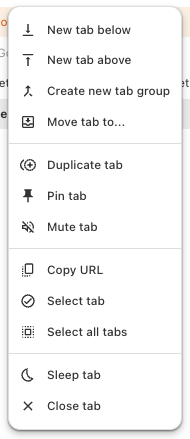
When hovering over a tab, quick action buttons appear on either side. You can configure which buttons are shown in Settings > Tabs. When right-clicking a tab you can access a full context menu with options including:
- Open new tabs above or below the selected tab.
- Create a new tab group or move tabs to an existing one.
- Move tabs to another window.
- Duplicate tab.
- Pin/Unpin, Mute/Unmute, Sleep, Reload.
- Copy tab URL.
- Select tab / Select all tabs.
- Close tab.
When multiple tabs are selected and you right-click, the same menu appears with additional bulk actions.
Tabs belonging to a group show that group’s color on their left edge. Hovering over the colored bar shows the group name in a tooltip.